Split Image Online Free
Split JPG, PNG, or WebP pictures into grids, strips, or tiles in seconds. 100% private in-browser processing with zero server uploads.
or drop a file,
paste image or URL
Supports JPG, PNG, WebP, GIF, BMP, AVIF formats
No image? Try one of these:
By uploading an image you agree to our Terms of Service.
🔒 100% private in-browser processing
Image splitter features that stay out of your way
Splikit focuses on a clean split image workflow: private processing, flexible grids, and numbered exports you can post or print immediately.
Private browser processing
Split image jobs run on-device with the Canvas API. No forced cloud upload for the core cut.
Grids up to 10×10
Templates for 2×2, 3×3, and strips, plus custom rows and columns when a preset is not enough.
Numbered multi-format export
Download PNG, JPG, or WebP pieces with automatic numbering for orderly Instagram or print stacks.
Built for mobile and desktop
Touch-friendly controls so you can split photo free on a phone gallery path without installing an app.
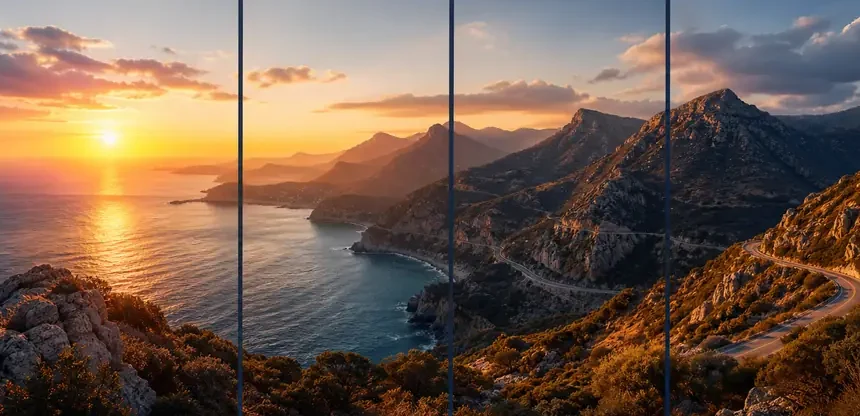
Turn ultra-wide landscape and panorama shots into ordered left-to-right strips.
What is an image splitter?
An image splitter (also called a split image tool) cuts one picture into equal or custom pieces — a grid, a 1×3 strip, or tiles for print. Searchers use both names for the same job: upload, set rows and columns, download numbered files.
Splikit is a free online kit for that job. Unlike heavy design apps, you open the page, upload, choose a grid, and download. Unlike many “upload first” converters, the core split image online path is private and local.
Related tools in the kit go deeper when you need them: Instagram Grid Maker, Carousel Splitter, Split for Printing, and Image to Printable PDF.
How to split image into 2, 3, 4, 6, 9 or 12 parts
Dedicated count pages were retired. The homepage splitter is the same engine for every equal-part job: pick a template or set rows and columns, then download numbered files.
Halves and two-part layouts
Use 1×2 for left/right halves or 2×1 for top/bottom. That covers before/after pairs, diptychs, and a simple split image in half without making a separate page for two files.
Three-part strips and triptychs
A 1×3 strip reads left to right for a short story or triptych. A 3×1 stack is better for tall posters. Keep the subject out of the two vertical or horizontal seams.
Four equal parts and 2×2 grids
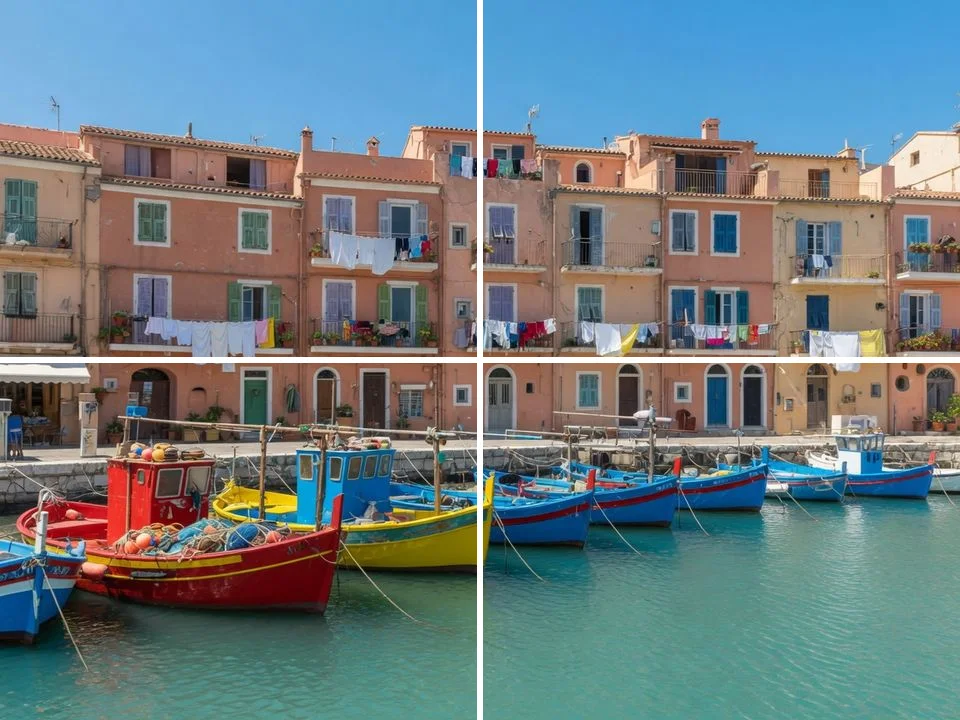
2×2 is the default homepage template. It is the fastest way to split image into 4 equal parts for a square collage or four A4-ish tiles. Watch the center cross on faces and logos.
Six, nine, and twelve-tile mosaics
2×3 or 3×2 makes six tiles. 3×3 makes nine equal parts for a profile puzzle. 3×4 or 4×3 makes twelve. Start with a high-resolution source, then jump to Grid Maker or print tools only when you need a destination crop.
How to split image online in 3 steps
No account. No install. Upload, set the grid, download numbered pieces.
Upload your photo
Drag and drop, browse, or paste an image. Supported formats include JPG, PNG, and WebP up to about 20 MB.
Choose a grid
Pick a template such as 2×2, 3×3, or 1×3, or set custom rows and columns up to 10×10 to split image online exactly as you need.
Download the pieces
Run Split Image, then download tiles individually or all at once. Files are numbered for orderly posting and printing.
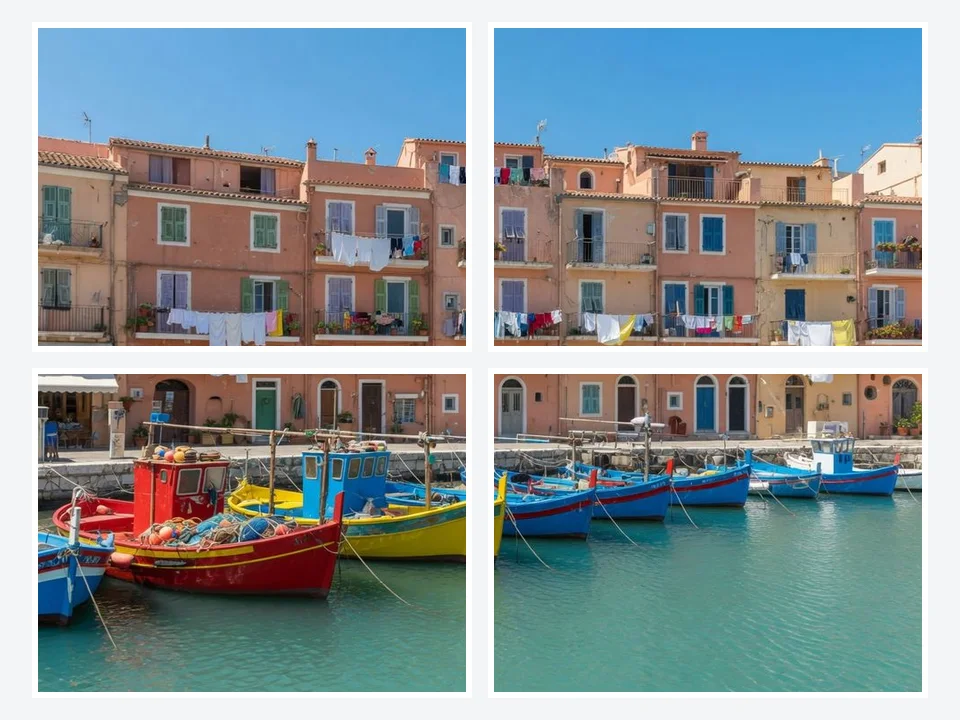
Why creators choose Splikit to split image files
Finish faster
Skip account walls and upload queues. Most split image online jobs complete in a couple of seconds on modern devices.
Keep photos private
Local processing reduces the risk of parking personal or client images on a random converter server.
Post with confidence
Numbered tiles and kit pages for Instagram grids help you avoid reverse-order mistakes on profile puzzles.
One kit, many layouts
Start on the homepage image splitter, then jump to print, PDF, panorama, or X/Twitter tools without learning a new product.
Pro tips before you split image
- Start high-resolution. For a 3×3 Instagram grid, begin near 1080×1080 or larger so each tile stays sharp after the platform compresses it.
- Protect faces and text. Keep important subjects away from cut lines when you plan a split image online grid.
- Pick the right export. PNG for graphics and logos; JPG at high quality for photos; WebP when you need smaller files.
- Mind phone memory. If a large HEIC/JPEG fails to open, convert or compress first, then retry the image splitter.
- Common error — wrong post order. For profile grids, reverse upload order is often required. Use numbered files and a posting guide so the composed image lines up.
Use cases and recommended settings
Match the job to a layout. These recipes use the same split image engine with different defaults.
Instagram 3×3 puzzle
Scenario → profile grid · Setting → 3 rows × 3 cols · Output → PNG or high-quality JPG · Caveat → post in reverse order on profile
Instagram grid maker →Panorama strip
Scenario → ultra-wide landscape · Setting → 1×3 · Output → PNG · Caveat → start with a source at least twice as wide as it is tall
Panorama splitter →Print / A4 tiles
Scenario → poster at home · Setting → more rows/cols or print tool · Output → PNG · Caveat → leave slight overlap if you assemble pages by hand
Split for printing →Quick halves or quarters
Scenario → before/after or 2×2 share · Setting → 1×2 / 2×2 · Output → JPG · Caveat → center the subject before the cut
Open splitter →Triptych (into 3)
Scenario → three-panel feed · Setting → 1×3 · Output → PNG · Caveat → check vertical vs horizontal story flow
Open splitter →Four equal tiles
Scenario → square collage · Setting → 2×2 · Output → WebP or JPG · Caveat → even lighting helps seams disappear
Open splitter →
Split posters and illustrations into exact multi-tile prints for home tiling or social campaigns.
Split image FAQ
What is an image splitter? +
An image splitter is the same job as split image online: one photo cut into a grid, strip, or equal parts you can download as numbered files. Splikit is a free browser image splitter — no account, no watermark, no required upload.
Is Splikit a free split image tool? +
Yes. You can split image files online free with no account and no watermark. The core image splitter runs in your browser.
Does split image online upload my photos to a server? +
No. Splikit processes the split image job locally in your browser. Your photo does not need to leave your device for the core split.
How do I split image into 3 or 4 equal parts? +
Open the tool, upload a photo, pick a 1×3 or 2×2 template (or set custom rows/columns), then download the numbered pieces. The homepage splitter is the same engine for every count.
Can I use this image splitter for Instagram grids? +
Yes. A common path is a 3×3 grid for profile puzzles. For Instagram-specific framing and reverse posting order, use the Instagram Grid Maker. 4:5 swipe slides belong on the Carousel Splitter page, not this homepage 1×3 strip.
Can I split image for printing or multi-page posters? +
Yes. Use more rows and columns for print tiles, or open Split Image for Printing / Image to PDF for poster-style workflows. High-resolution PNG export helps keep tiles sharp on paper.
What formats does the image splitter support? +
Common inputs include JPG, PNG, WebP, GIF, BMP, and AVIF. Export as PNG, JPG, or WebP with an adjustable quality slider for lossy formats.
Is there a file size limit when I split image online? +
The practical limit is about 20 MB per image for stable browser performance. Very large phone photos may need compression first if your device runs low on memory.
Do I need to install an app to split photo free on mobile? +
No app install is required. Open splikit.com in your mobile browser, upload from the gallery, split, and download. On iOS, long-press or use the download control if the browser blocks multi-file ZIP saves.
How is Splikit different from a generic online image splitter? +
Splikit is a kit: one private core splitter plus focused tools for grids, carousels, print, PDF, panorama, and social crops. UI is built for a calm, Apple-like first-run experience with numbered exports.
Will my split image pieces keep order for posting? +
Yes. Pieces are numbered automatically so you can upload in a predictable sequence. For Instagram profile grids, post the tiles in reverse order. The Instagram Grid Maker shows that sequence.
How do I split image in half or into 2 parts? +
Upload the photo, choose a 1×2 left/right or 2×1 top/bottom template, then download the two numbered files. Center the subject before the cut if you need a clean before/after pair.
How do I split image into 9 equal parts? +
Use a 3×3 template on this page for nine equal tiles. If you also need Instagram profile framing and reverse posting order, open the Instagram Grid Maker.
Can I split image into A4 pages from the homepage? +
You can cut a photo into a 2×2 or 3×2 grid here and print the tiles. For paper size, margins, and one printable PDF, use Split Image for Printing or Split Image to PDF.
How do I split image into a carousel? +
Homepage 1×3 is a simple equal-thirds strip of the full photo. For Instagram 4:5 swipe carousels, use the dedicated Carousel Splitter so each slide matches the feed crop.
Ready to split image online?
Jump back to the free Splikit image splitter — private, numbered exports, no signup.
Split image now