Splikit · Print tiles
Split Image for Printing Free
Free private tool for posters, maps, and wall art. Split image for printing into numbered A4/Letter tiles—no signup, no watermark.
or drop a file,
paste image or URL
Supports JPG, PNG, WebP, GIF, BMP, AVIF formats
No image? Try one of these:
By uploading an image you agree to our Terms of Service.
🔒 100% private in-browser processing
What does split image for printing mean?
To split image for printing is to divide one large picture into multiple equal sheets you can print on a normal home or school printer. People also search for A4 page tiles, multi-page poster cuts, and home printer wall art workflows when they want poster-sized results without a commercial wide-format shop.
Splikit exports image tiles—not a single PDF. That is intentional: designers sometimes need PNG/JPG pieces for mixed media, classroom kits, or manual layout in other apps. If you want one ordered multi-page PDF with margins and overlap, use Split Image to PDF.
This print workflow stays private: the browser performs the cut, numbers the files, and downloads stay on your device. Typical limits match the rest of the kit (about 20 MB per source for comfortable performance).
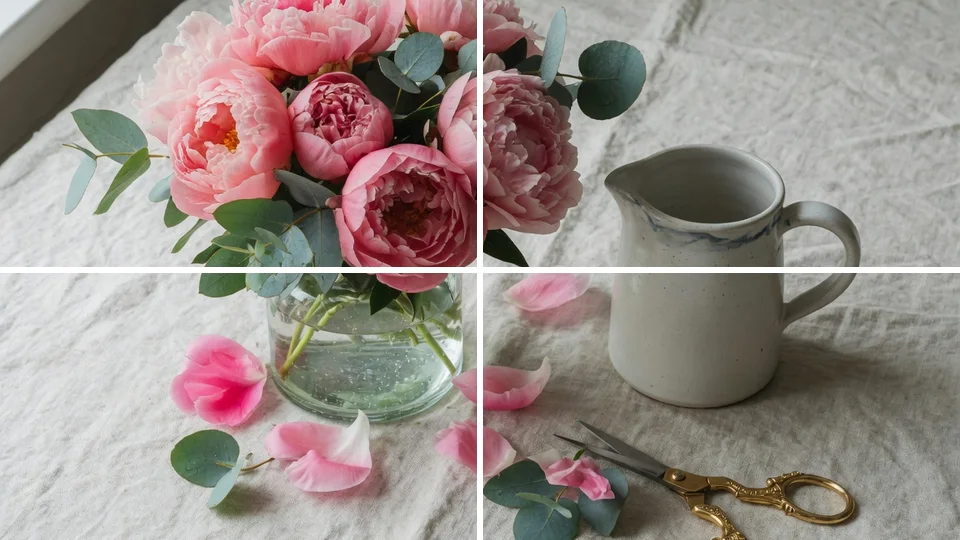
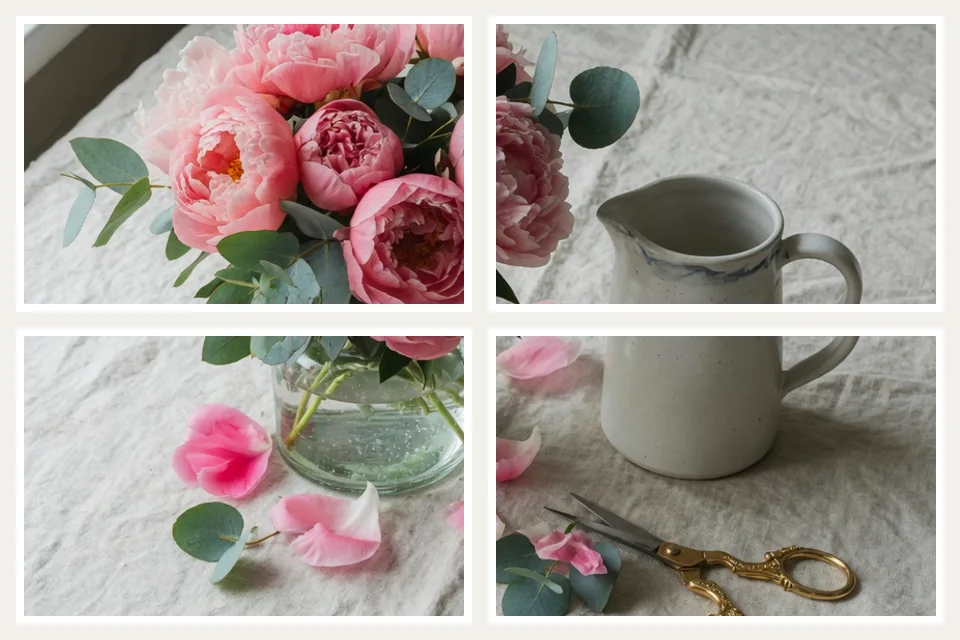
How to split image into A4 pages at home
Upload a large photo
Choose JPG, PNG, or WebP. Bigger sources produce sharper poster tiles when you split image for printing.
Choose a printable grid
Pick 2×2, 3×2, 3×3, or custom rows/columns that match how many A4/Letter sheets you want.
Download and print tiles
Export numbered pieces, print each at 100% scale, then assemble the poster on the wall or foam board.
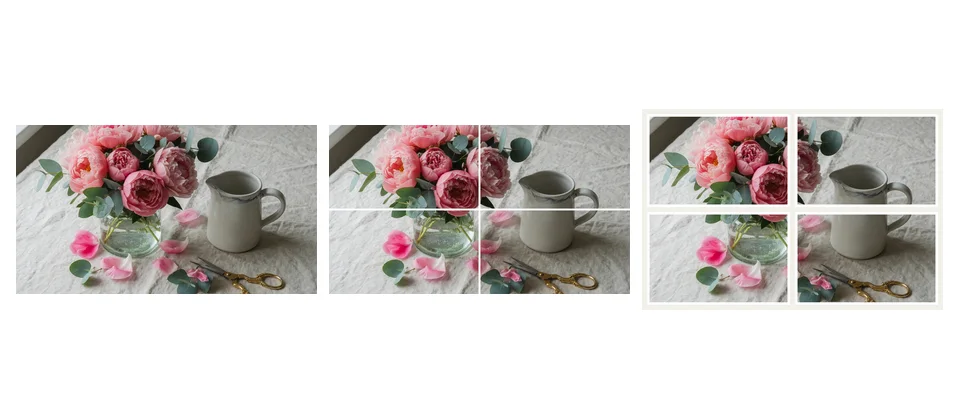
Image splitter for printing features
Built for poster makers who need reliable multi-sheet tiles without desktop software.
Poster-friendly grids
Presets such as 2×2, 3×2, and 3×3 map cleanly to multi-sheet wall art when you split image into pages.
Numbered tile exports
Every piece is labeled so assembly stays orderly on the floor or table after export.
Private browser cuts
An image splitter for printing should not require cloud uploads of family photos or classroom maps.
Format control
PNG for crisp diagrams; JPG/WebP when photo tiles need smaller files for email or USB handoff.
Use cases for split image into multiple pages
DIY wall poster
Scenario → living-room art · Grid → 2×3 or 3×3 · Paper → A4 · Caveat → use matte paper to reduce glare on seams.
Classroom / event sign
Scenario → large readable text graphic · Grid → 2×2 · Paper → Letter · Caveat → keep type away from cut lines.
Map or blueprint
Scenario → navigable wall map · Grid → 3×2 · Paper → A4 · Caveat → higher source resolution for fine lines.
Trade-show backdrop lite
Scenario → booth graphic on a budget · Grid → 3×3 · Paper → A4 · Caveat → foam board backing helps flatness.
Photo mosaic gift
Scenario → family panorama · Grid → 1×3 strips or 2×2 · Paper → photo paper · Caveat → color-manage prints if critical.
Pattern tiling craft
Scenario → sewing/craft reference · Grid → custom · Paper → Letter · Caveat → mark edge alignment before cutting fabric.
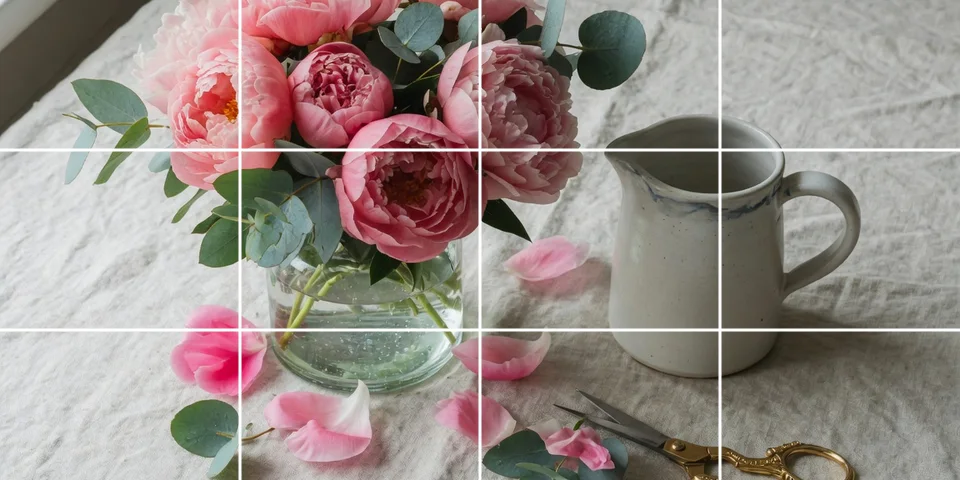
Pro tips before you split image for printing
- Plan sheets first. Decide how many A4/Letter pages you accept, then pick the grid—not the other way around.
- Print at 100% scale. “Fit to page” shrinks tiles unevenly and breaks poster alignment after you split image into pages.
- Test one sheet. Print tile 1 alone to check color and margins before committing ink to the full set.
- Mind critical content. Keep faces and fine type off the internal cut lines when you split image for printing poster layouts.
- Need engineered overlap? Switch to the PDF poster tool instead of forcing bleed in plain image tiles.
Related kit links: printable PDF, general split image tool, 2×2 homepage split.
Split image for printing FAQ
Is this image splitter for printing free? +
Yes. You can split image for printing free on Splikit with no account and no watermark. Tile downloads use the private browser engine.
How do I split image into A4 pages for a poster? +
Upload a high-resolution photo, choose a grid (for example 2×2 or 3×2), export numbered tiles, then print each tile on A4 or Letter paper at 100% scale and assemble them in order.
Can I split image into multiple pages for printing at home? +
Yes. More rows and columns create more pages. Plan the final wall size first, then pick a grid that matches how many sheets you are willing to tape together.
Does split image for printing upload my file? +
No. Core processing stays in your browser. Your source photo does not need to leave the device for a standard tile export.
What is the difference between this page and Split Image to PDF? +
This page downloads separate image tiles (JPG/PNG/WebP) you print one-by-one. The PDF tool builds one multi-page printable PDF with paper size, margins, and overlap controls.
What resolution do I need to split image for printing poster quality? +
Start as large as practical. Soft tiles usually mean the source was too small for the final assembled size. Prefer PNG for graphics; high-quality JPG for photos.
Can I print on US Letter instead of A4? +
Yes. The tiles are plain image files—load them into any print dialog and choose Letter or A4. Keep scale at actual size / 100% so seams line up.
How should I order tiles when I split image for printing? +
Use the automatic numbers. Print tile 1 first and keep a simple row-major map (left-to-right, top-to-bottom) so assembly matches the preview.
Should I add overlap between pages? +
Image-tile mode does not auto-bleed pages. If you need engineered overlap and trim marks, use the printable PDF tool. For tape assembly, slight hand overlap is fine.
Is Photoshop required to slice image for printing? +
No. Splikit is a browser image splitter for printing workflows—no Photoshop install for equal poster tiles.
Ready to split image for printing?
Return to the free Splikit print tile tool—private tiles, numbered order, no signup.
Split image for printing